How to Add Engraved Text to an SMT Stencil
Last updated on Oct 19, 2026
When ordering an SMT stencil from JLCPCB, you can add customized text to help identify the corresponding PCB design or model, indicate stencil specifications such as thickness and dimensions, or include other information, such as the file name and production date.
The Engrave Text option is available on the SMT stencil ordering page.
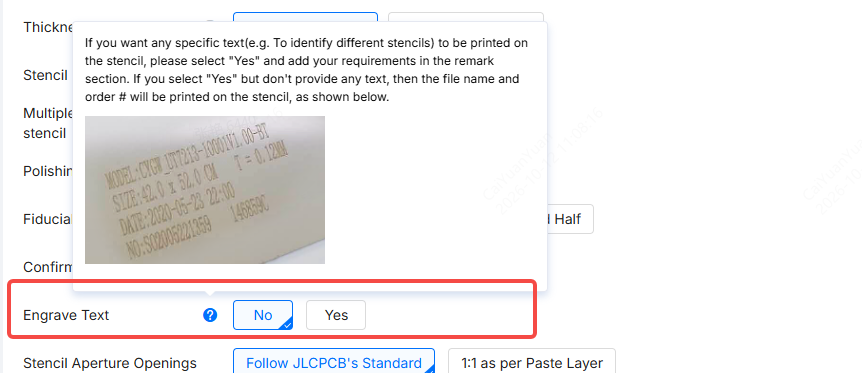
What Is Engraved Text on an SMT Stencil?
Engraved text is customized identification information marked directly on the stencil surface using laser marking technology.
It can be used, for example, to:
- Identify different PCB designs or stencils.
- Distinguish between Top and Bottom stencils.
- Add a project name, part number, or other identification information.
- Make stencils easier to identify during production and assembly.
Please note that engraved text is intended for identification purposes only. It is applied to the stencil surface and does not cut through the stainless steel foil or affect the solder paste apertures or the PCB design.
How to Add Engraved Text
After uploading your Gerber file and selecting the required stencil parameters, locate the Engrave Text option on the SMT stencil ordering page.
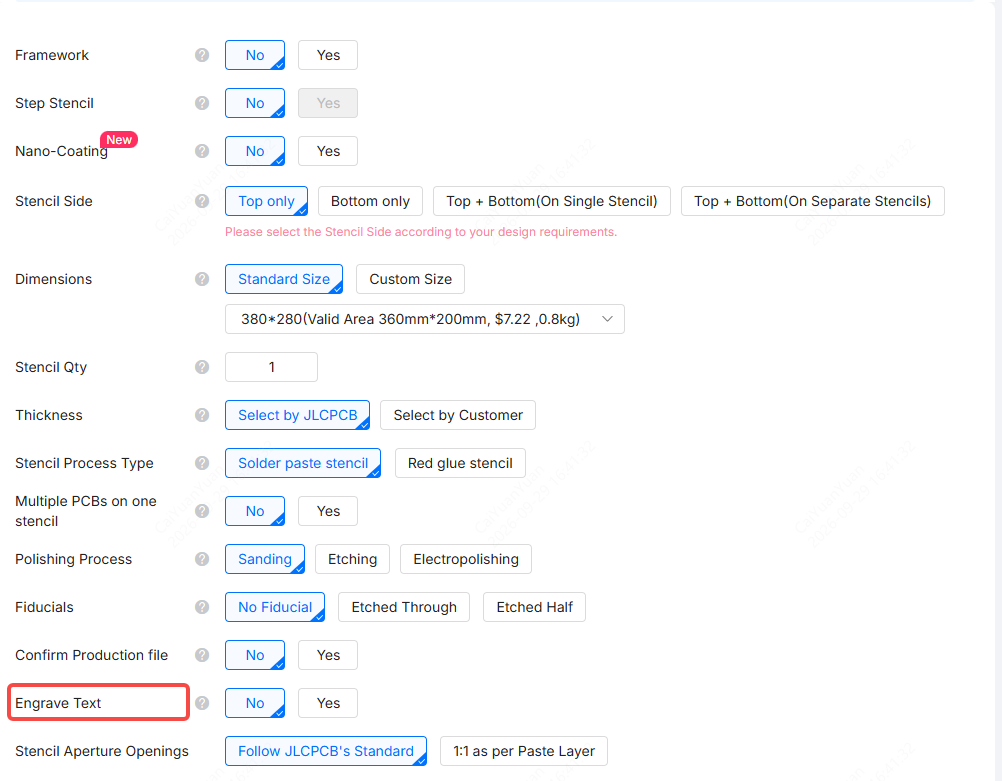
1Step 1: Select "Yes" for Engrave Text
By default, Engrave Text is set to "No".
If you want to add customized text to your stencil, select "Yes". Otherwise, you can keep the default setting.
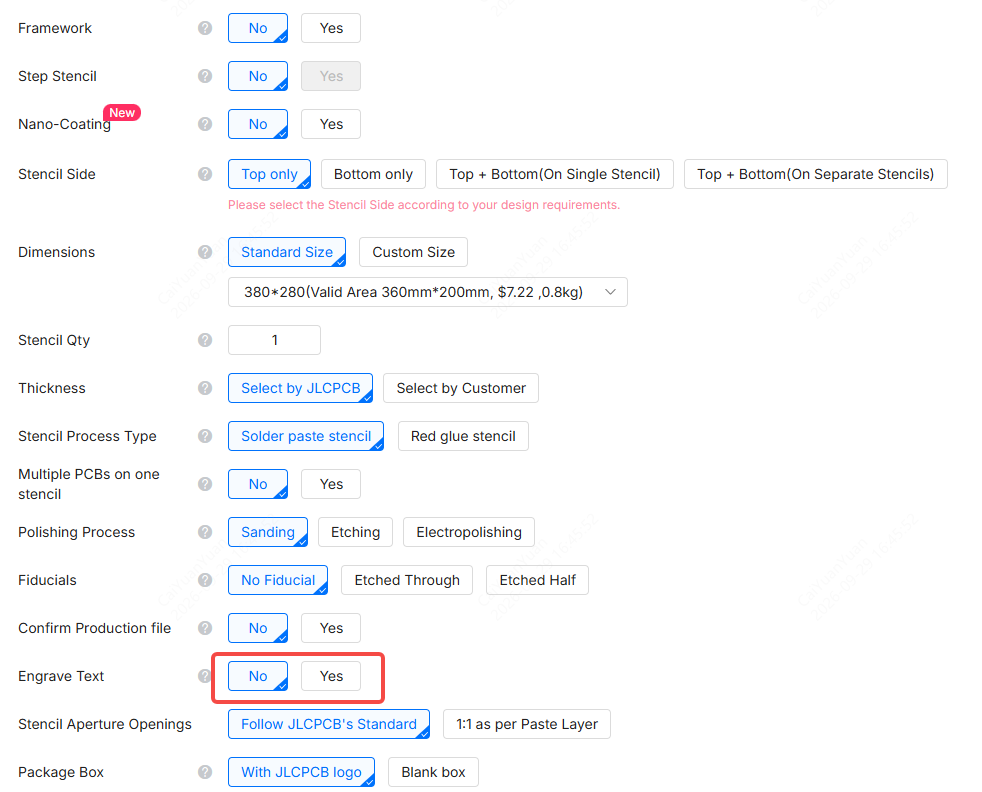
2Step 2: Enter and Preview the Engraved Text
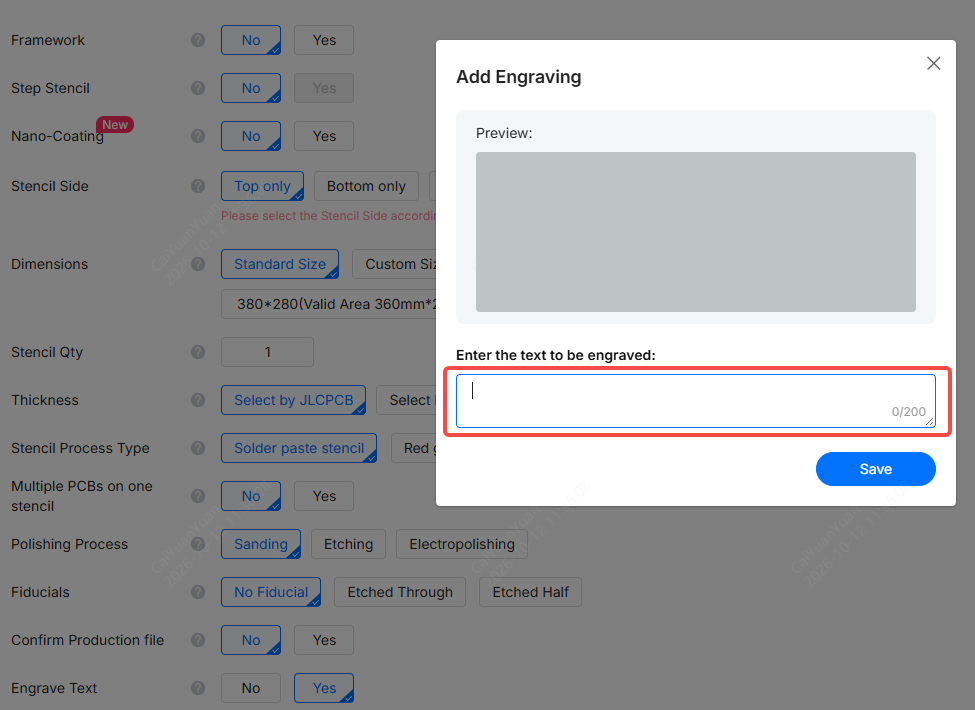
After selecting "Yes", the Add Engraving window will appear.
Enter the exact characters you want to engrave on the stencil in the input field. A preview will be displayed so you can check the engraved text before saving.
For example, if you want the following text to be engraved on the stencil:
“Project A - Top”
Enter:
“Project A - Top”
Do NOT enter instructions such as:
Please engrave "Project A - Top" on the stencil.
Only enter the actual characters that you want to be engraved, NOT instructions describing what should be done.
After confirming that the preview is correct, click the "Save" button to save your engraved text.
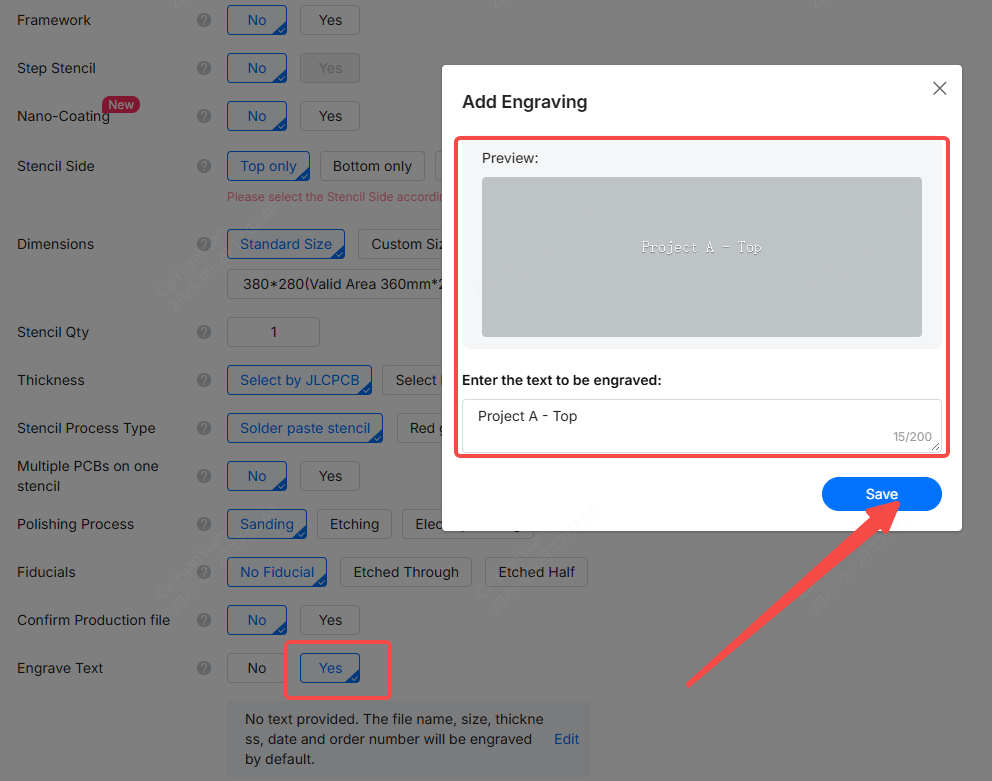
What Happens If You Select "Yes" but Do Not Provide Any Text?
If you select "Yes" for Engrave Text but do not provide any customized text, JLCPCB will use the following information as the default engraving, as indicated on the ordering page:
- File name
- Size
- Thickness
- Date
- Order number
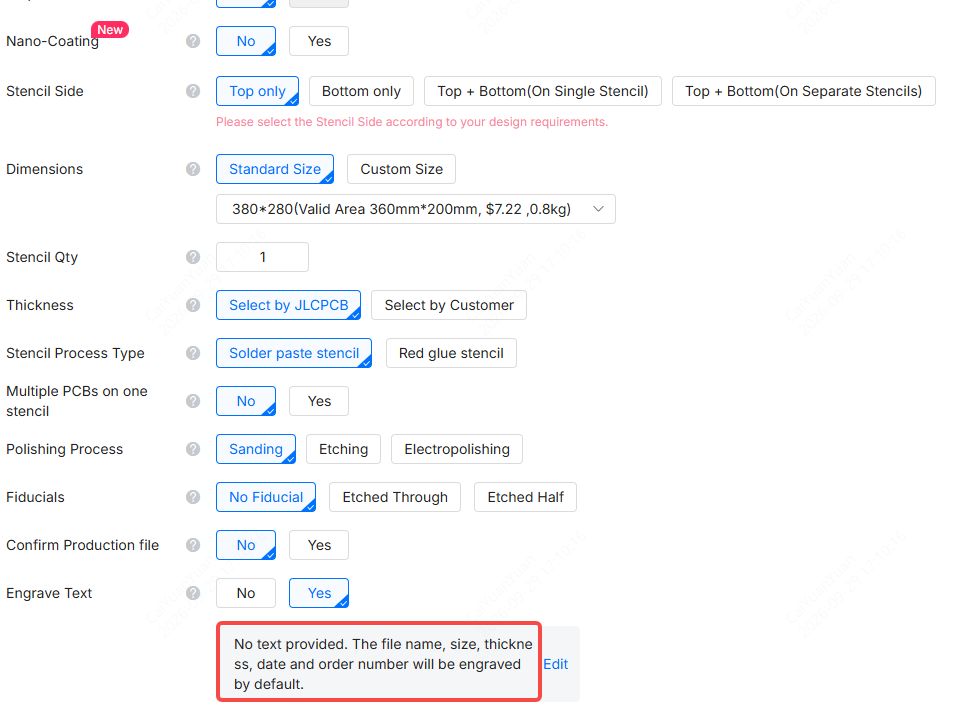
Therefore, if you want specific customized text, make sure to enter the exact wording in the input field of the Add Engraving window and click the "Save" button after checking the preview.
Important Notes for Engraving Text on an SMT Stencil
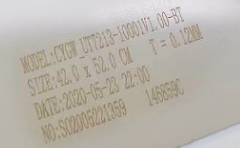
- Selecting "Yes" without providing customized text will result in the file name, size, thickness, date and order number being used as the default engraving.
- If you require specific engraved text, always provide the exact wording in the input field after the Add Engraving window appears. Do NOT enter instructions in the text input field.
- If your uploaded file includes text intended to be engraved at a specific position or in a specific orientation, select "Yes" for Engrave Text and describe your requirements in the Stencil Remark field. Otherwise, the engraving may not follow your specifications.
- The Engrave Text input field is for the actual text to be engraved, while Stencil Remark is for additional instructions, such as the required engraving position or orientation.
Following these instructions will help ensure that your SMT stencil is engraved with the identification information you need.